


Accepting a Request

Mar 10, 2026
 191
191
Navigate to your list of requests and click on the REQ ID.
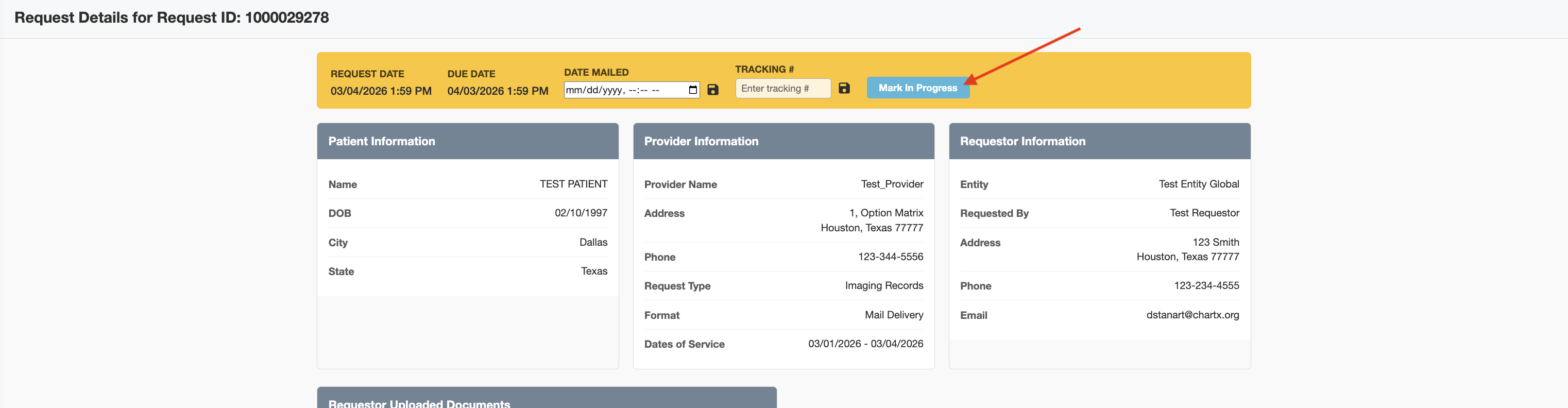
Click on Mark In Progress. You will not be able to fulfill the request until this is done.
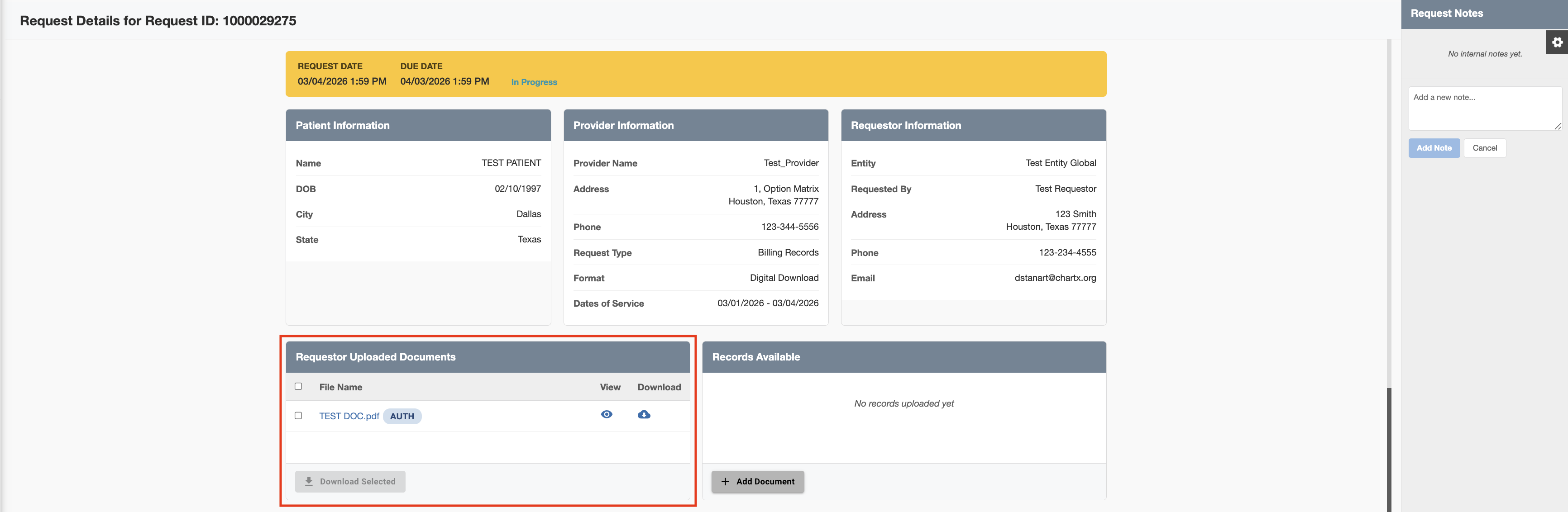
Review the requestor documents that have been uploaded.
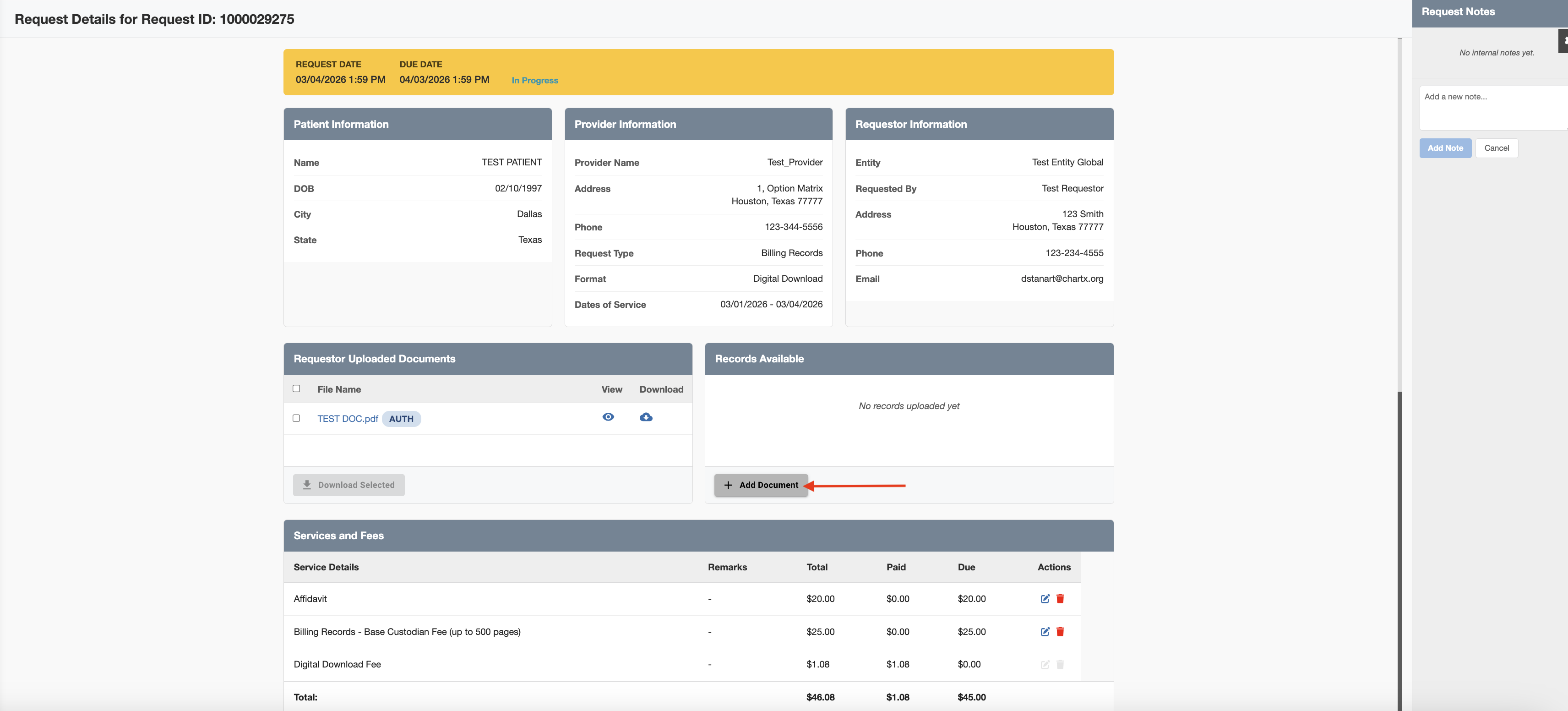
Click Add Document.
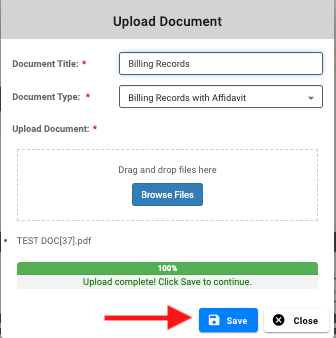
Enter Document Title. Upload Records and click Save.
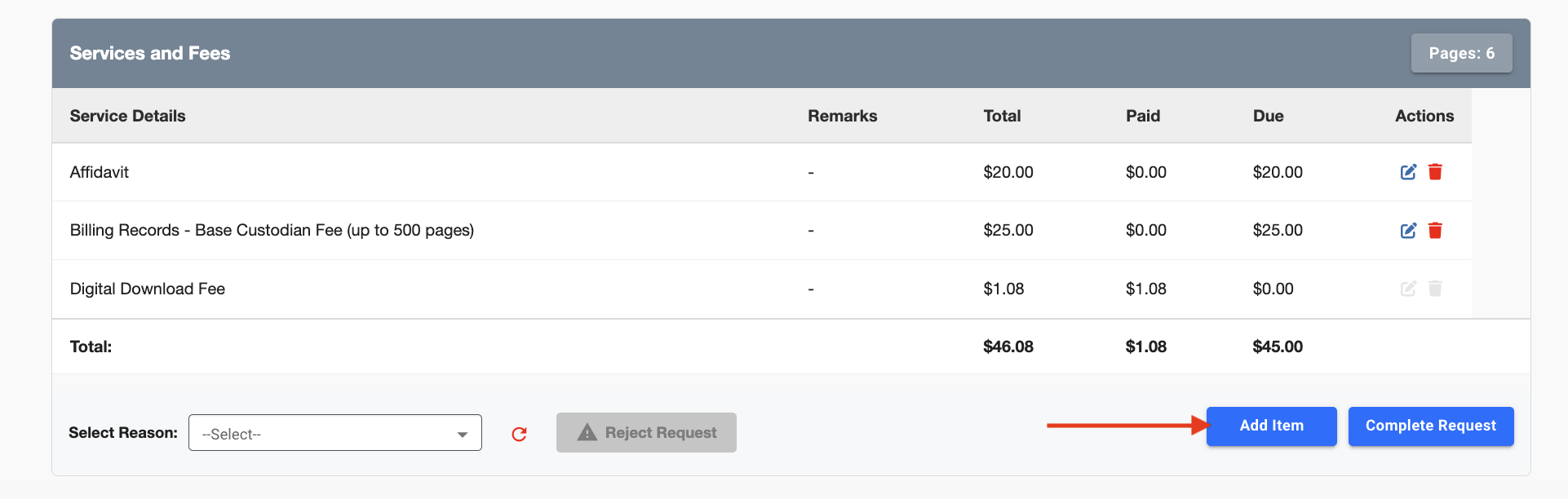
If you need to add a line item charge, click Add Item.
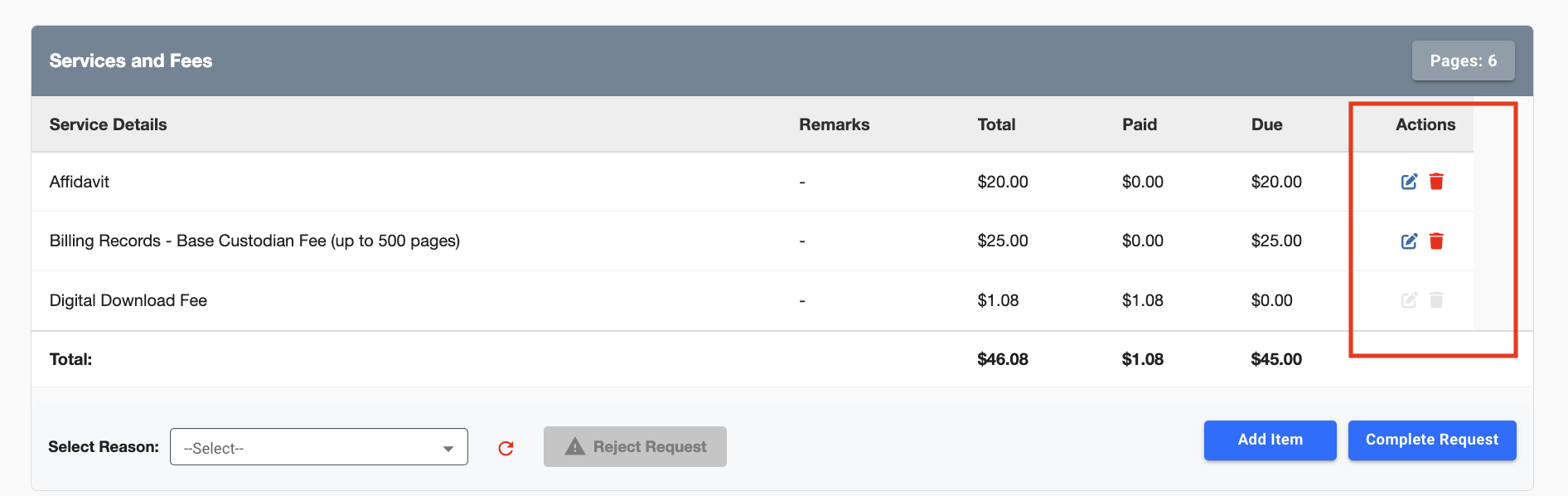
If you need to Edit or Delete a line item charge, use the dedicated icons.
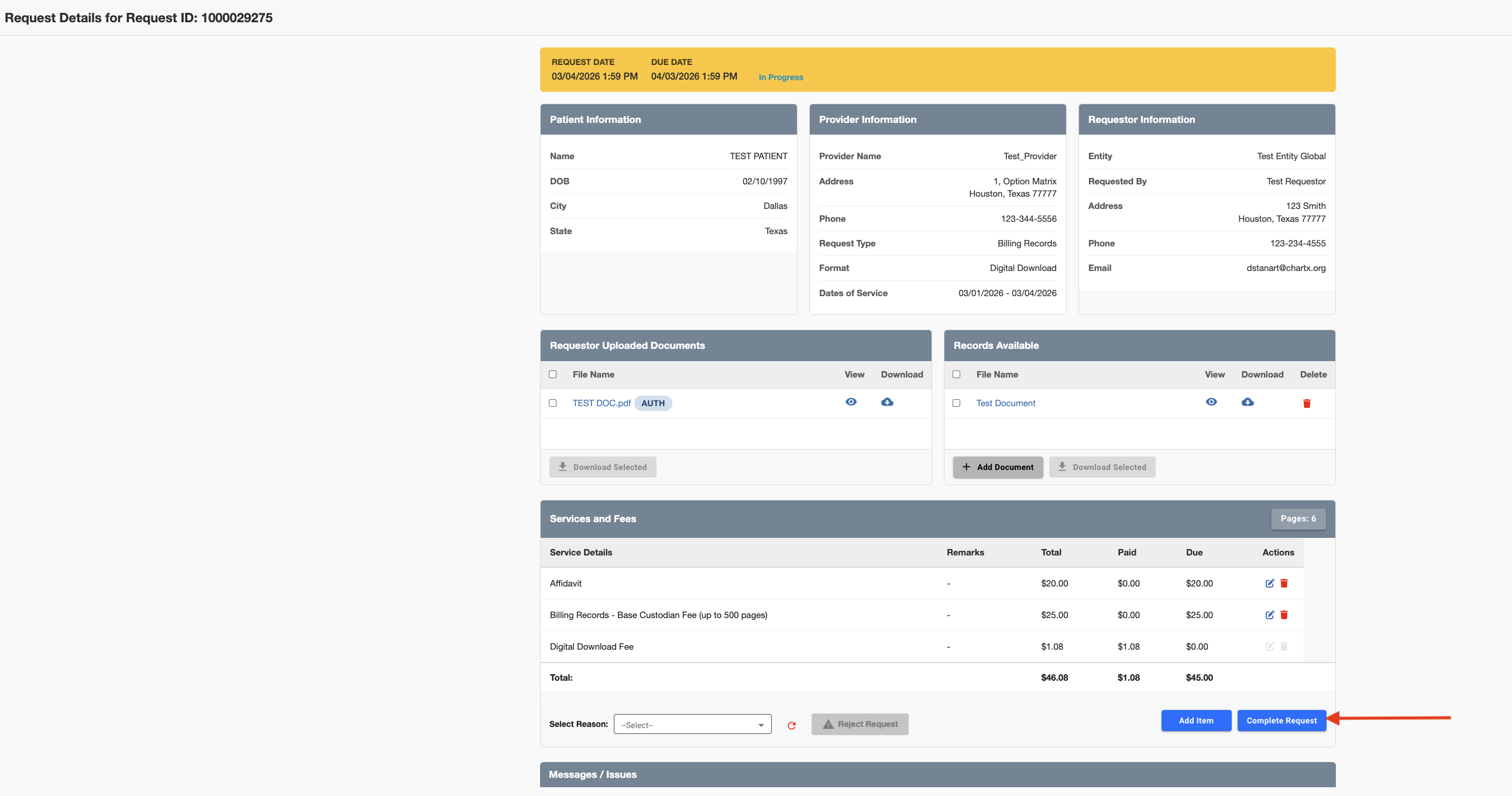
When you have finished uploading the records and are satisfied with the charges, click Complete Request.
When you return to the list of requests you will see that the completed request will show green and the Request Status is changed to Fulfilled.


