To access additional filter options, click More. 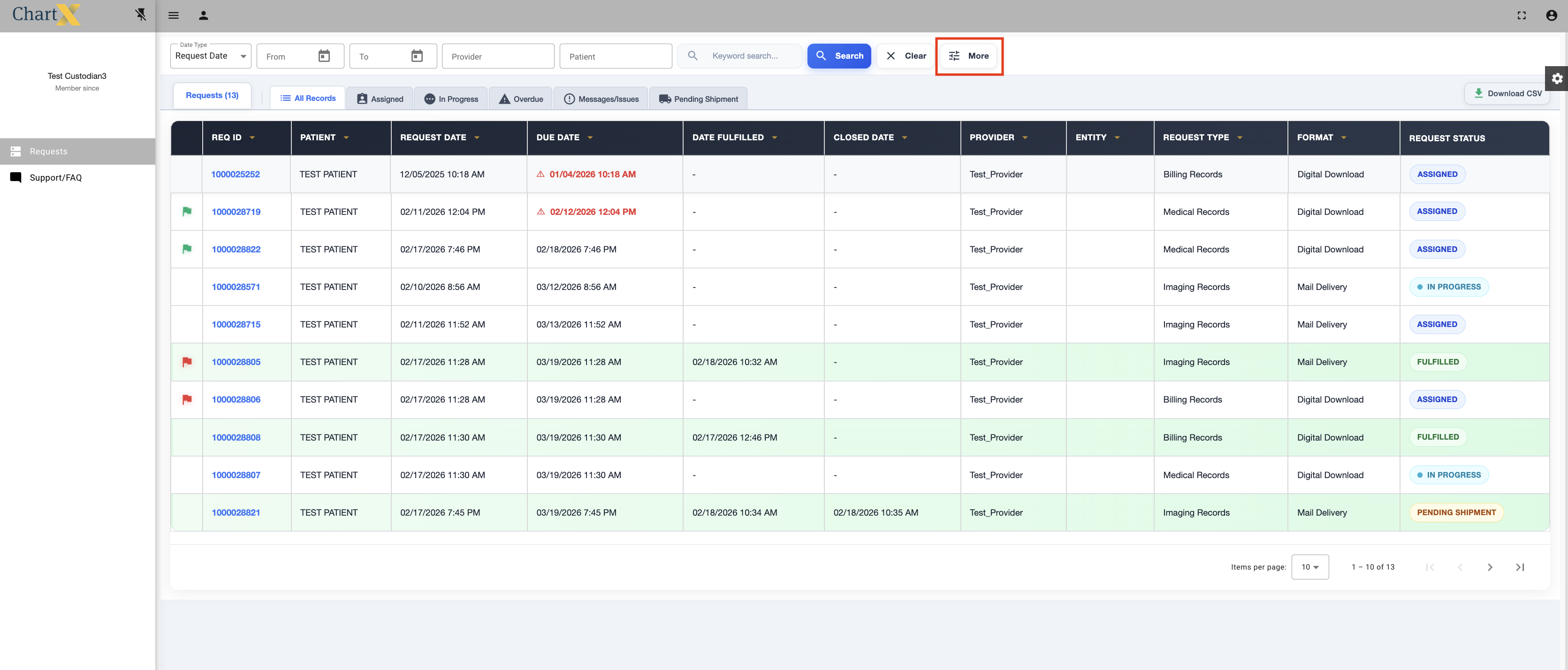
This is the view for the expanded filter options.
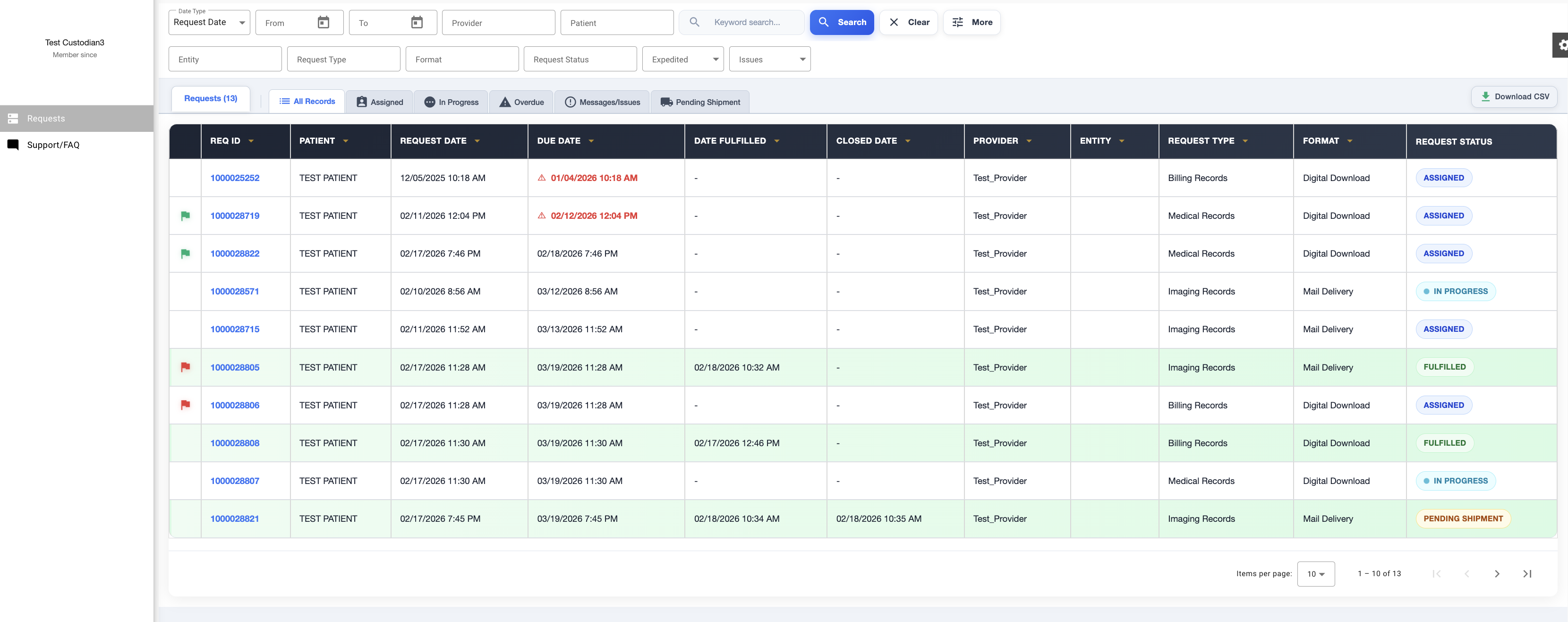
Here are the criteria you can search by: Date Range, Provider, Patient, Entity, Request Type, Request Status, Expedited Records, Records with Message or Issues. You can also search by REQ ID by typing it into the Keyword Search Box.
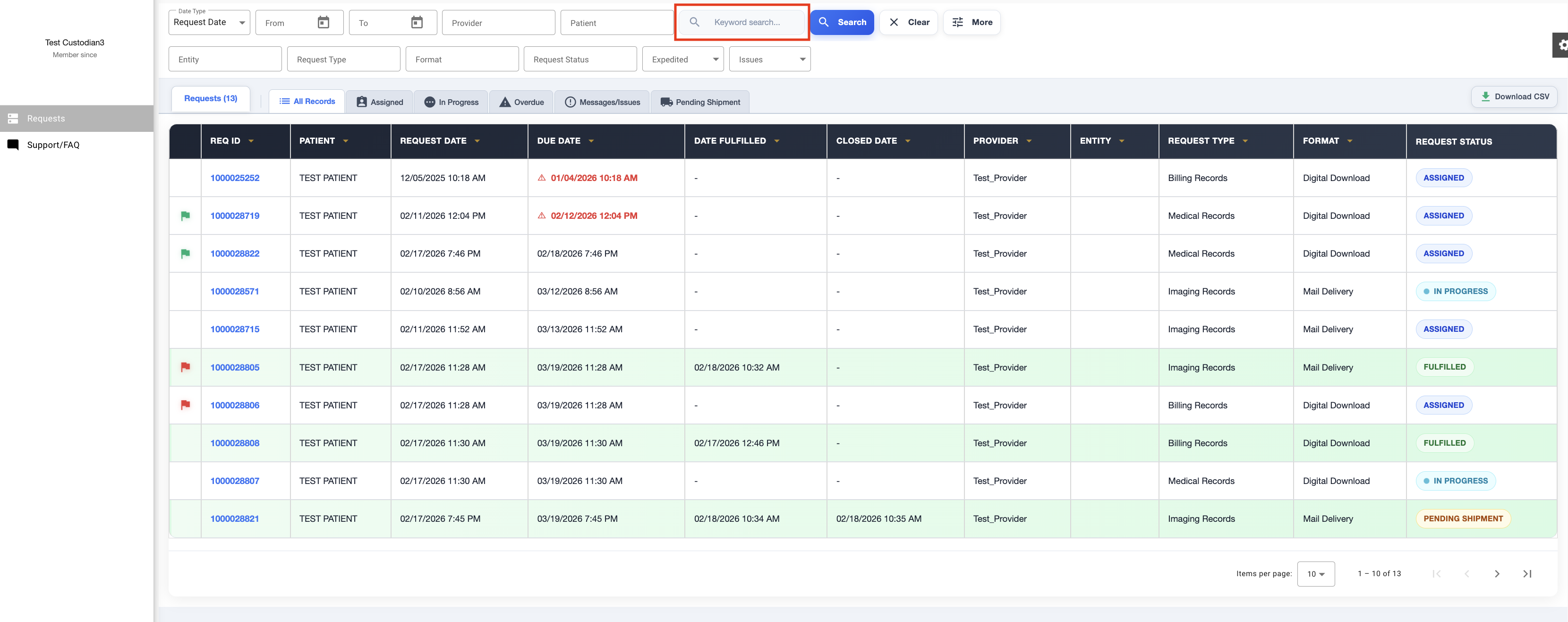
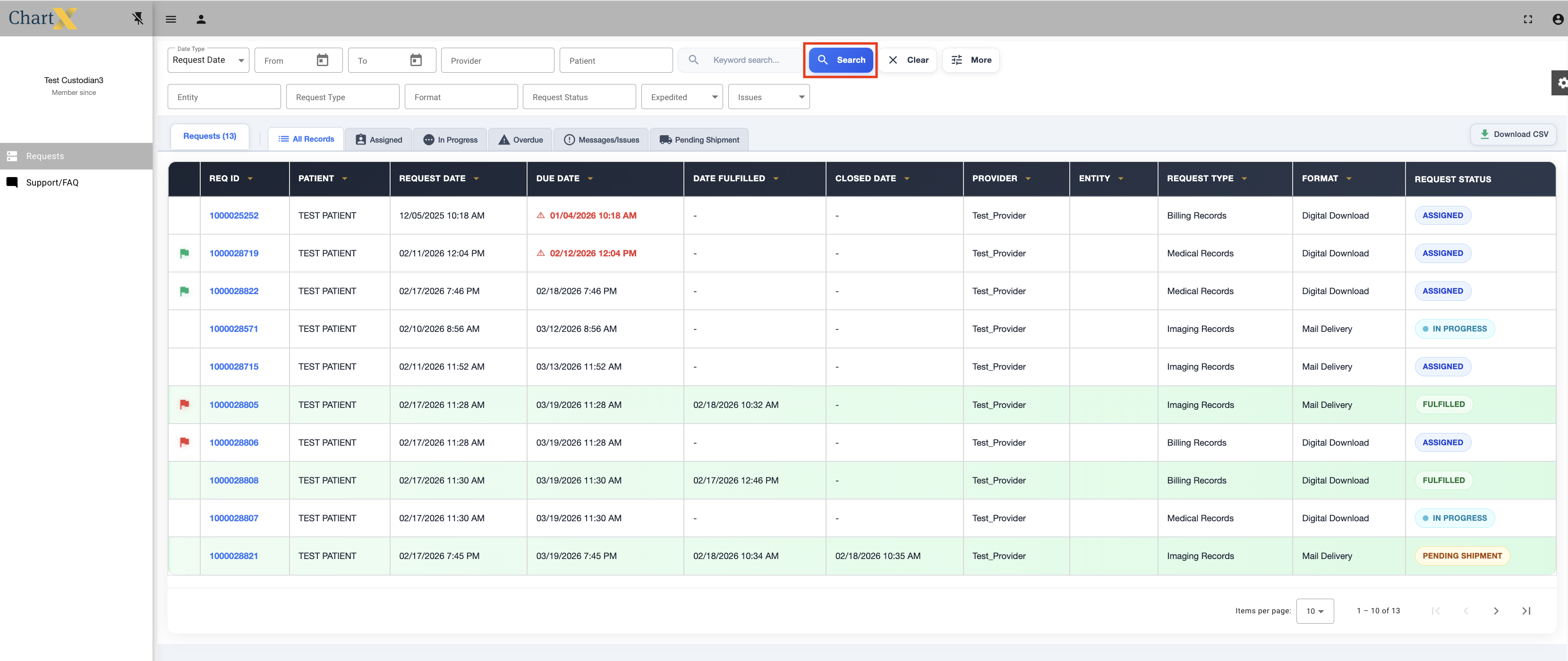
Once you have selected your criteria click Search. Note: Your search criteria will remain in the filter until you click Clear.
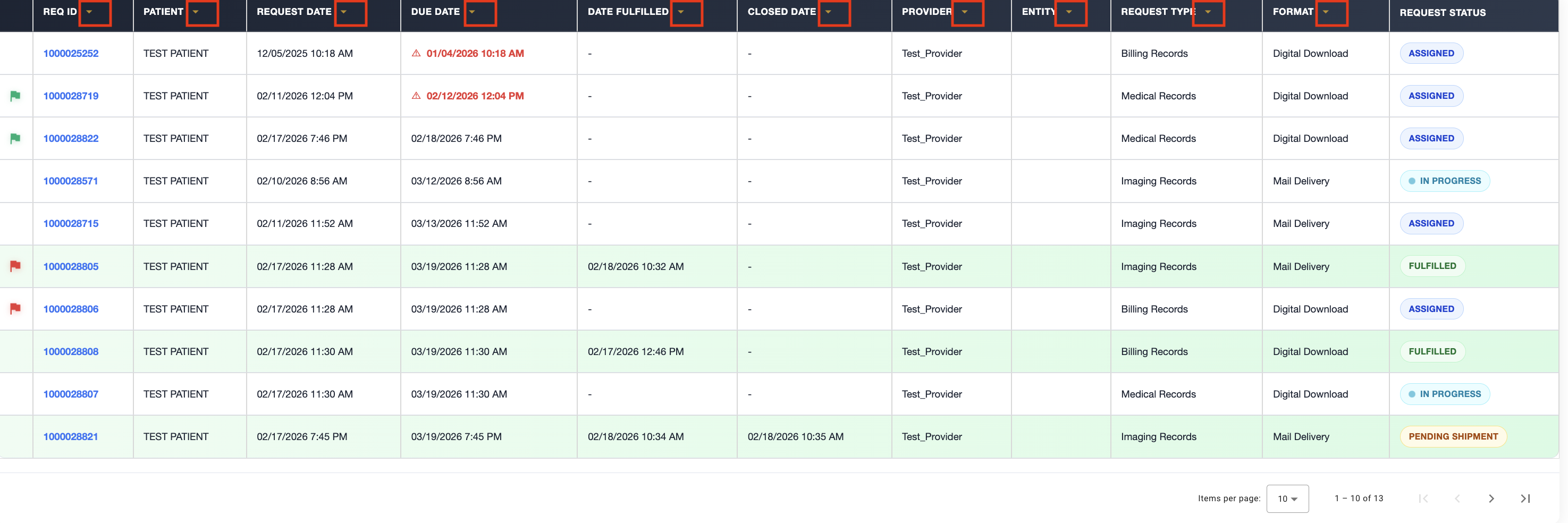
You can also use the yellow arrows in each column to sort.
|
Be sure to click More to see all of the filter options.
|
|
|
NEW CHANGES:
"In Progress" now appears as a selectable Date Type option in the filter
|
|
|
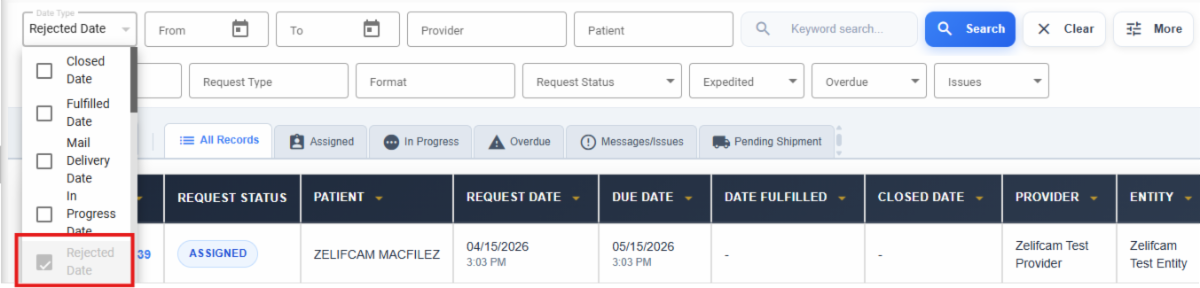
"Rejected" now appears as a selectable Date Type option in the filter
|
|
|
You can select multiple Request Status values simultaneously
|
|
You can select multiple Date Type values simultaneously
|
|
|
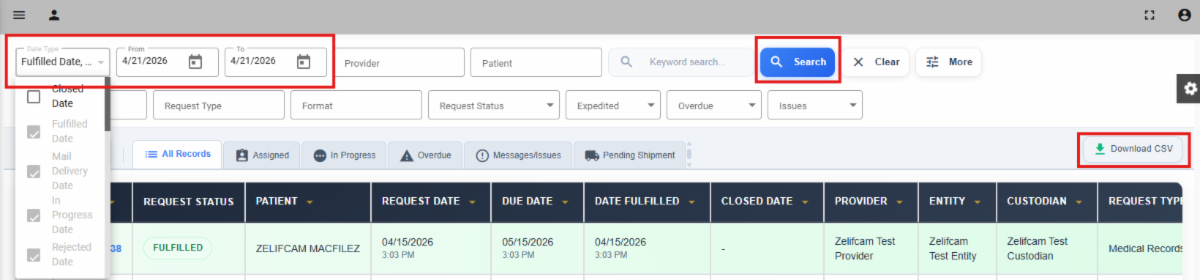
If you want to see how many records you have worked on in a a certain time period:
- Select the following Date Types - Fulfilled Date, Mail Delivery Date, In Progress Date, and Rejected Date.
- Select the time period - example if you just wanted to today's work, you would make the start date and the end date in the date range today's date.
- Click Search.
- You can also Download a CSV of those requests by clicking Download CSV on the right-hand side of the screen.
|
|