

 0
0
Step-by-Step Guide for Uploading Imaging Records
Getting Started
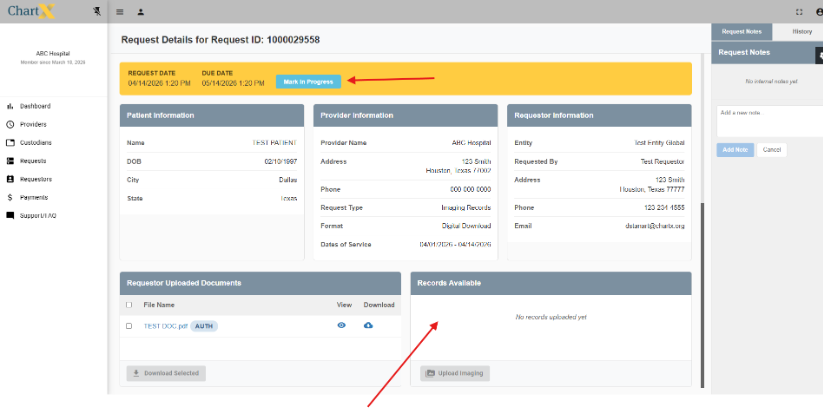
Step 1: Click Mark in Progress. Once the Mark in Progress is clicked, the Record Available section will open and allow for imaging uploads.
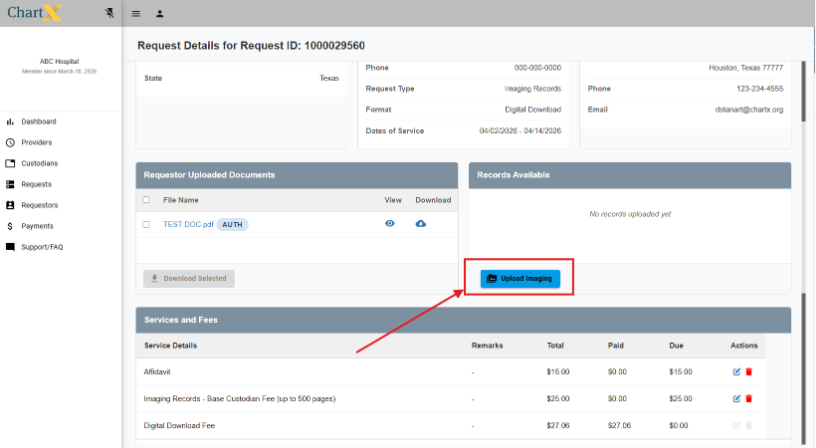
Step 2: Click Upload Imaging. A pop up will appear to allow for image uploads and additional documentation, such as an affidavit.
Step 3: Click Select Folder or drag and drop folder containing images here.
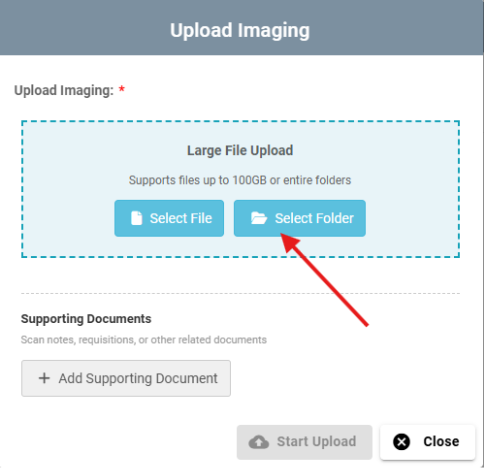
Step 4: Upload supporting documents (ex: affidavit) by clicking on the Add Supporting Document. Once images and any supporting documents are added, click Start Upload.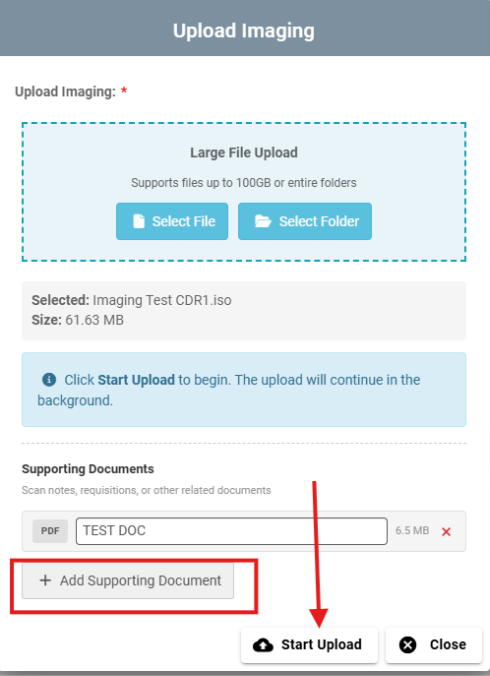
Step 5: Wait for images to upload. This may take a few minutes depending on the size of the folder being uploaded.
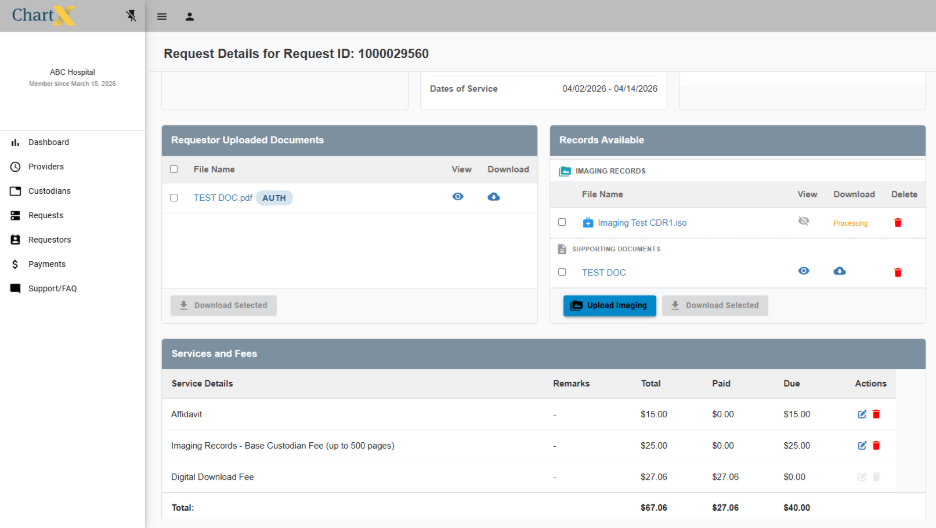
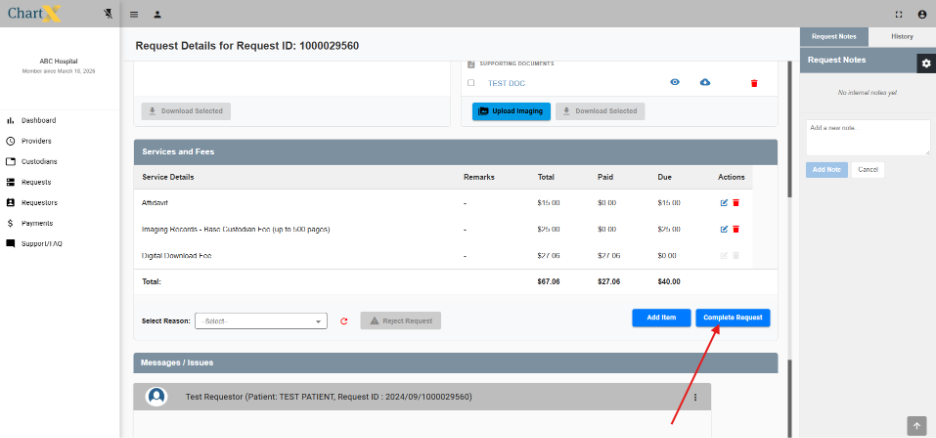
Step 6: To complete request, edit fees and click Complete Request.